Why Download World of Warcraft?
Before diving into the technical aspects of downloading World of Warcraft (WoW), let's briefly discuss why you might want to download this iconic game. World of Warcraft, developed and published by Blizzard Entertainment, is an MMORPG (Massively Multiplayer Online Role-Playing Game) that has captivated millions of players worldwide since its release in 2004. With its vast virtual worlds, diverse characters, and deep lore, it's no wonder that so many enthusiasts are eager to join the Azerothian adventure. Now, let's get to the process of downloading it.
Step 1: Ensure System Requirements
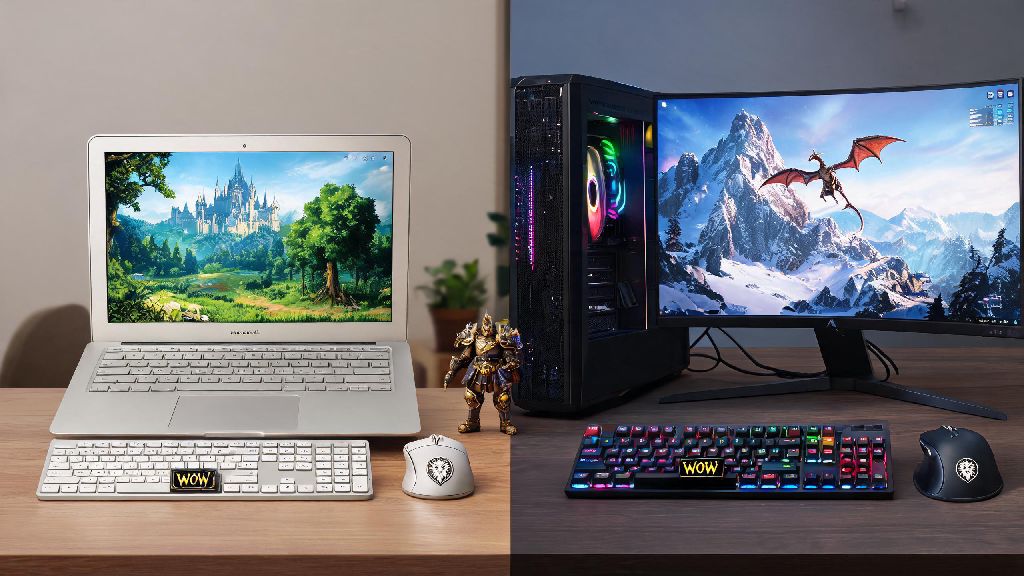
Before you begin the download, it's essential to make sure your computer meets the system requirements for World of Warcraft. Check the minimum and recommended requirements on the Blizzard website to ensure a seamless experience.
Step 2: Purchase World of Warcraft
If you haven't already purchased the game, head to the Blizzard Shop or any other authorized retailer. You can purchase a physical copy, digital download, or subscribe to a monthly subscription. Make sure to keep the confirmation email or receipt as it may be required for installation.
Step 3: Create a Blizzard Account
If you don't have a Blizzard account, create one on the Blizzard website. This account will be your key to accessing and playing World of Warcraft. Remember to keep your account information secure, as it will be linked to all of your purchases and playtime.
Step 4: Install the Blizzard Battle.net Desktop App
The Blizzard Battle.net Desktop App is the central hub for managing and installing all your Blizzard games. Download the app from the official Blizzard website and follow the installation process. Once installed, launch the app, and it will guide you through setting up your account and downloading your games.
Step 5: Download World of Warcraft
With the Battle.net Desktop App open and your Blizzard account logged in, you should see World of Warcraft listed under "My Games." Click on the game to see the available options, and then select "Download." The game will begin to download onto your computer. Depending on your internet speed, this could take a few hours to several days for the complete installation.
Step 6: Install World of Warcraft
Once the download is complete, you'll see an "Install" button next to the game in the Battle.net Desktop App. Click on it to begin the installation process. The installation might take a few minutes, depending on your computer's speed.
Step 7: Play World of Warcraft
After the installation is finished, you can click on the "Play" button to launch the game. You'll be prompted to log in with your Blizzard account, and once you do, you can start your journey in the world of Azeroth.
---
In conclusion, downloading World of Warcraft is a straightforward process that involves ensuring your system meets the requirements, purchasing the game, creating a Blizzard account, downloading and installing the Blizzard Battle.net Desktop App, downloading the game, and finally, playing. Whether you're a new player or returning to the world of Warcraft, these steps will guide you through the installation process and help you embark on countless adventures.