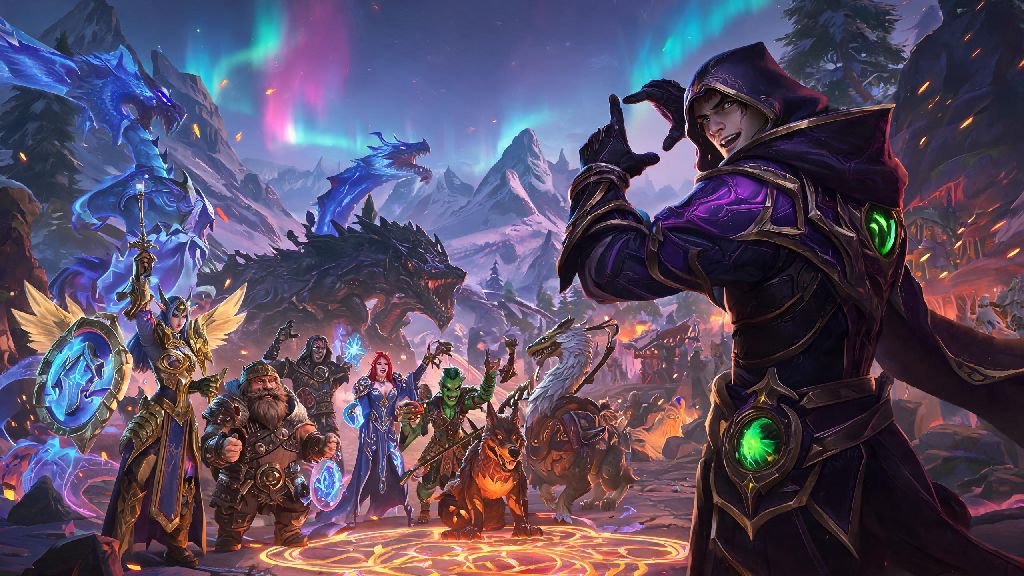
After 12 years of running guild raids, grinding transmog sets, and wandering every hidden corner of Azeroth, I’ve lost count of how many times guildmates have messaged me panicking mid-clear: “Wait, how do I take a screenshot of this first kill before we loot?” It’s such a small skill, but it makes all the difference when you want to save a memory of your first Mythic clear, a perfect transmog combo, or that once-in-a-lifetime rare spawn you stumbled on while questing. If you’ve ever fumbled with keyboard buttons mid-excitement and missed the shot, this guide breaks down how to screenshot in World of Warcraft for every playstyle, no fancy tech required.
How to Screenshot in World of Warcraft Using Default In-Game Tools
If you don’t want to download any extra add-ons or software, the game’s built-in screenshot tool works perfectly for 90% of use cases. It’s lightweight, doesn’t impact your frame rate, and is already set up the second you install the game. Default in-game screenshot hotkey for Windows players is the Print Screen (PrtScn) key, usually located in the top right corner of standard keyboards. You’ll see a small text pop up in the center of your screen confirming the shot was saved if you have UI notifications turned on.
For Mac players, the default system screenshot works too, but you’ll get better results if you bind a custom hotkey directly in WoW’s settings. Mac players can use the default Command + Shift + 3 combination for quick shots, or bind a dedicated key in the Controls menu under the “Other” section to avoid accidentally capturing your desktop instead of the game. All default screenshots save to your WoW game folder, under the retail > Screenshots subfolder for modern WoW, or classic > Screenshots if you play Wrath of the Lich King Classic or Vanilla Classic.
The only real downside to default screenshots is that they save as low-resolution JPG files by default. If you want higher quality shots with less compression, head to your Graphics settings, find the Screenshot Format dropdown, and switch it to PNG. It’ll take up a little more storage space, but the quality difference is noticeable, especially if you plan to edit or share the shots later. I usually keep mine set to PNG, since I’ve got plenty of extra storage on my gaming PC, and I hate when a perfect mount drop shot comes out blurry.
Top Add-Ons to Improve Your WoW Screenshot Quality and Control
If you take a lot of screenshots for social media, transmog contests, or guild archives, default tools might feel a little limiting. There are dozens of great add-ons built specifically for WoW photographers that add extra features you won’t get with the base game. Screenshot Helper is the most popular add-on for WoW content creators and casual players alike, and for good reason. It lets you set a single hotkey to hide all UI elements, take the shot, and turn the UI back on automatically, so you don’t have to fumble with toggling action bars and chat boxes before you capture the moment.
Whether you’re learning how to screenshot in World of Warcraft for casual memories or content creation, these add-ons make the process way smoother. Another great option is Advanced Screenshot, which lets you take shots at a higher resolution than your monitor supports. That means even if you play on a 1080p screen, you can capture 4K or even 8K screenshots that look crisp when printed or shared on large displays. It also has options to add custom timestamps, watermarks, and automatically sort screenshots into folders based on what you’re doing: raid shots go to a Raid Clears folder, PvP wins go to a PvP folder, and so on.
The only catch with add-ons is that they do use a small amount of RAM, so if you’re playing on a very low-end PC, you might see a 1-2 FPS drop when they’re active. I usually just enable my screenshot add-ons when I’m planning to take photos, like during guild events or transmog runs, and disable them when I’m pushing high keys or raiding, so they don’t impact my performance at all.
How to Edit and Organize Your WoW Screenshots After Capture
Even the best raw screenshot can use a little tweak before you share it with the community. You don’t need expensive editing software like Photoshop either—free tools like GIMP, Paint 3D for Windows, or Preview for Mac work perfectly for basic edits. Always save a copy of your original unedited screenshot before making any changes, so you don’t accidentally ruin the only copy of that rare mount drop you waited 6 months to get.
If you take a lot of screenshots, organizing them as you go will save you hours of searching later. I have separate folders for every expansion, plus subfolders for raids, transmog, PvP, and random funny moments I capture while playing. Here are a few quick tips to make your shots stand out before you post them:
One little trick I use all the time is adding a very subtle vignette to my landscape shots. It draws the viewer’s eye to the center of the image, and makes the bright colors of zones like the Dragon Isles feel even more vivid. It takes 10 seconds to add in most free editing tools, and makes a huge difference in how professional your shots look.
Troubleshooting Common WoW Screenshot Issues
Even if you follow all the steps perfectly, you might run into a few common issues now and then. The most common one I hear from players is that they can’t find their screenshots after they take them. 9 times out of 10, they’re looking in the wrong game folder. If you switch between Classic and Retail WoW regularly, make sure you’re checking the right retail or classic subfolder, since each version of the game saves screenshots to its own separate folder.
Another common issue is screenshots coming out completely black. This almost always happens when you’re running WoW in fullscreen exclusive mode, which blocks system-level screenshot tools from capturing the game feed. If your screenshots keep coming out black, switch WoW from fullscreen exclusive mode to windowed fullscreen in your graphics settings, and the problem will go away immediately. Windowed fullscreen also makes it easier to tab out of the game to check Discord or guides without long load times, so it’s a win-win for most players.
If your hotkey isn’t working, head to your Controls settings and search for “Screenshot” in the search bar. It’s easy to accidentally overwrite the default hotkey when you’re setting up new binds for your class abilities, so double check that the key you’re using is actually assigned to the screenshot function. I bound my screenshot key to one of the side buttons on my gaming mouse a few years ago, and I haven’t missed a shot since—no more fumbling for the PrtScn key mid-raid when the boss dies.
At the end of the day, learning how to screenshot in World of Warcraft is all about preserving the little moments that make the game feel special. Whether you’re saving a shot of your first guild clear, a perfect transmog fit, or a silly glitch you stumbled on while questing, you don’t need fancy tools to get great results. Try out the default tool first, then test out add-ons if you want more control, and don’t forget to share your best shots with the WoW community—you never know who might love seeing a new angle of a zone they’ve explored a hundred times.