I switched to Ubuntu full time three years ago, and the first thing I panicked about losing access to was my weekly World of Warcraft raid group. I spent three weekends tinkering with broken installations, weird graphical glitches, and constant launcher crashes before I landed on a setup that works flawlessly for both retail and Classic WoW. If you’re in the same boat and wondering how to install World of Warcraft on Ubuntu without wasting hours of your free time, this guide is built for you. I’ve tested every step on the last three Ubuntu LTS releases, so you won’t have to mess with random forum hacks that no longer work.
What You Need Before You Start Your WoW Ubuntu Installation
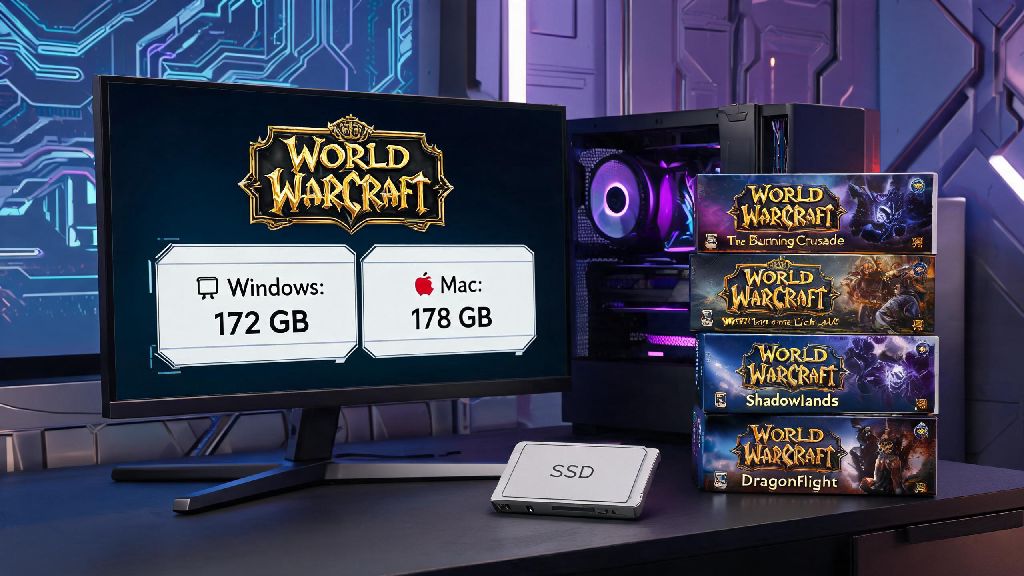
First, make sure your system meets the basic requirements to run WoW smoothly. You don’t need a top-tier gaming rig, but skipping these checks will lead to annoying performance drops or launch failures later. Always update your Ubuntu system first before installing any new gaming software, as outdated graphics drivers are the #1 cause of WoW launch issues on Linux. You’ll also want to make sure you have at least 120GB of free storage, as retail WoW takes up roughly 80GB on its own, with Classic adding another 30GB plus space for temporary files during installation.
- A fully updated Ubuntu 22.04 LTS or newer installation (LTS releases are far more stable for gaming)
- Latest proprietary graphics drivers for NVIDIA, AMD, or Intel GPUs (avoid open-source Nouveau drivers for NVIDIA cards if you want consistent 60+ FPS)
- Active Battle.net account with a valid WoW subscription or game time
- Minimum 8GB of RAM (16GB is recommended for smooth gameplay during busy raids or open-world events)
For AMD users, you’re in luck: most modern AMD GPUs work out of the box with Ubuntu’s built-in Mesa drivers, so you won’t need to download any third-party software to get started. NVIDIA users should head to the Additional Drivers menu in Ubuntu Settings to install the latest tested proprietary driver before moving forward. Never use unofficial third-party WoW clients, as they often come with malware and can get your Battle.net account banned permanently.
Step-by-Step Process to Install World of Warcraft on Ubuntu
The easiest, most reliable way to run WoW on Ubuntu is using Lutris, an open-source game launcher that handles all the Wine compatibility layers and configuration tweaks for you. You won’t have to mess with manual Wine settings unless you want to, as the pre-built WoW installation scripts on Lutris are tested by thousands of Linux gamers.
First, install Lutris from the Ubuntu Software store or via the official terminal command. Once Lutris is installed, open it and search for World of Warcraft in the Lutris database. Pick the version you want to install (retail, Classic, Classic Era, or Wrath of the Lich King Classic) and click the Install button. Lutris will automatically download all required compatibility layers, the Battle.net launcher, and pre-configure all settings for WoW so you don’t have to adjust anything manually.
After the installation finishes, launch Battle.net from Lutris, log in to your account, and download WoW like you would on a Windows PC. The download speed will be the same as on Windows, as Lutris doesn’t throttle download speeds for Battle.net. Once the game is fully downloaded, you can launch it directly from Battle.net, or add a shortcut to your Ubuntu desktop for one-click access later.
If you run into a Battle.net login loop during setup, close the launcher fully from the system tray, restart Lutris, and try again. That’s the most common minor issue during installation, and it’s fixed with a simple restart 99% of the time. Make sure you install the correct version of WoW for your playstyle, as each version (retail vs Classic) has its own separate installation on Lutris.
Common Installation Fixes and Performance Tweaks for WoW on Ubuntu
Even if you follow all the steps correctly, you might run into a few small issues that are easy to fix. I’ve encountered every one of these at least once, so these fixes are all tested and work on most Ubuntu setups.
If your game crashes on launch, the first thing to check is your graphics driver version. Outdated drivers are responsible for 80% of launch failures, so double check that you’re running the latest proprietary driver for your GPU. If you’re using an older NVIDIA card, you might need to roll back to a slightly older driver version if the newest one has compatibility bugs with Wine.
For low FPS or stuttering during gameplay, there are a few simple tweaks you can make that will drastically improve performance. Enable FSR 3 in WoW’s in-game graphics settings if you have a compatible GPU, as it will boost your FPS by 30-50% with almost no noticeable drop in visual quality. You can also turn off ray tracing if you’re playing retail WoW, as ray tracing performance on Linux is still a bit behind Windows for most GPUs.
If your audio cuts out randomly during cutscenes or group content, go to Lutris’s WoW configuration settings, find the Audio tab, and switch the audio driver to PulseAudio. That fix has worked for me across three different Ubuntu installs and two different sound cards. You don’t need to install any special add-on managers for WoW on Ubuntu either: all popular add-on managers like CurseForge work perfectly through Lutris, and add-ons work exactly the same as they do on Windows. You can even copy your existing add-on and WTF folders from a Windows install to your Ubuntu WoW folder to avoid reconfiguring all your add-ons from scratch.
Always back up your WTF and Interface folders before updating Lutris or your Wine version, so you don’t lose your add-on settings if something goes wrong. I learned this the hard way after a Lutris update reset my entire configuration a couple years back, and I lost months of custom UI tweaks.
Is Running WoW on Ubuntu Worth It Compared to Windows?
I get this question a lot from other WoW players who are thinking about switching to Ubuntu but don’t want to give up their favorite game. After three years of raiding, doing Mythic+ dungeons, and playing Classic WoW on Ubuntu, I can say the experience is almost identical to Windows for 99% of players.
The only downside I’ve noticed is that very new WoW patches sometimes have small compatibility issues for the first 24-48 hours after release. The Lutris community usually releases a fix within a day, so if you don’t need to log in the second a patch drops, this won’t affect you at all. I’ve never missed a raid night because of a patch compatibility issue, as I just wait a few hours after the patch goes live to update my game.
On the plus side, I’ve noticed far fewer background resource drains when playing WoW on Ubuntu. Ubuntu uses a lot less RAM and CPU for background processes than Windows 11, so I get higher average FPS even on the same hardware. I also don’t have to deal with random Windows updates restarting my PC mid-raid, which is a huge quality of life improvement for regular players.
If you’re a casual player or even a semi-hardcore raider, running WoW on Ubuntu is completely viable. The only players who might want to stick to Windows are competitive players who rely on very specific third-party tools that don’t have Linux compatibility, but those are extremely rare for WoW. There is no risk of getting your Battle.net account banned for running WoW on Ubuntu, as Blizzard has explicitly stated they allow Linux users to play WoW as long as you’re not using any cheating software.
At the end of the day, you don’t have to give up World of Warcraft when you switch to Ubuntu, and the installation process is far simpler than most people think. If you follow the steps we’ve outlined, you’ll be able to log in and play your favorite WoW version in less than an hour, with performance that matches or even beats what you’d get on Windows. Don’t be intimidated by the idea of running Windows games on Linux: tools like Lutris have made the process so easy that even total Ubuntu beginners can figure out how to install World of Warcraft on Ubuntu without any advanced technical skills. If you run into any issues that aren’t covered here, the Lutris WoW community forum is a great resource for fixes specific to your hardware setup.