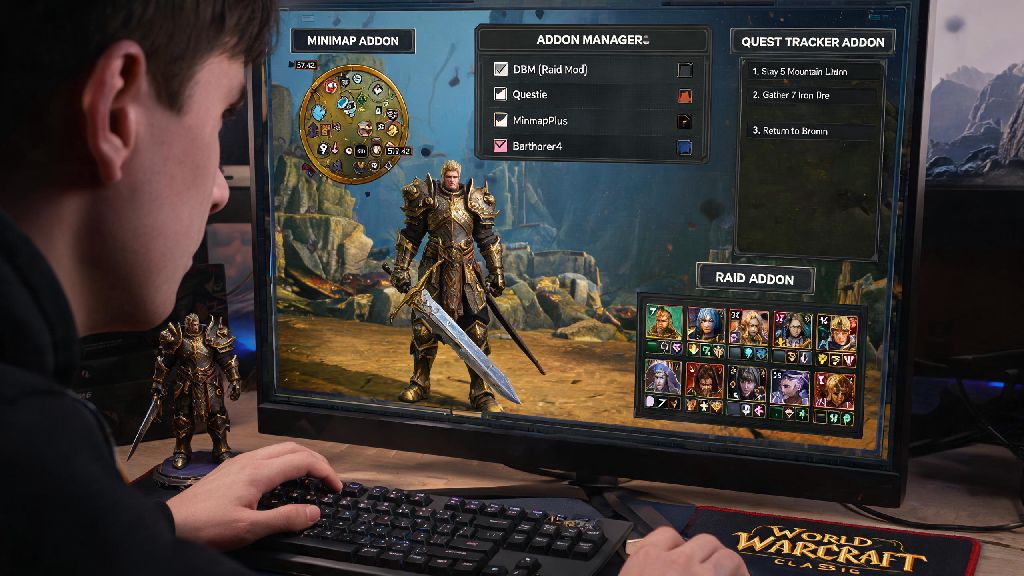
If you’ve ever spent 10 minutes squinting at the default map trying to find a hidden quest objective, or missed a critical raid boss mechanic because the default UI didn’t give you a clear warning, you already know how game-changing custom addons are for WoW Classic. Today we’re walking you through exactly how to install World of Warcraft Classic addons, plus all the little mistakes most new players make that break their UI or put their account at risk. I’ve been playing WoW Classic regularly since its first 2019 launch, and I’ve tested every installation method out there, so you won’t have to waste hours troubleshooting glitches after you’re done.
Pre-Install Checks to Keep Your Account and Game Safe
Before you download any addons, there are a few critical checks you need to run first to avoid headaches later. A lot of new players skip these steps and end up with corrupted game files, lost account access, or broken UIs that take hours to fix.
First, Only download addons from trusted, well-known sources. I’ve seen dozens of players lose their accounts over malicious addons from random sketchy sites that steal login credentials, so this is non-negotiable. Next, Confirm the addon is compatible with your current WoW Classic version. Retail WoW addons won’t work with Classic, and addons built for Wrath of the Lich King Classic won’t work with Vanilla Classic, so double check the version tag before you download. Third, Back up your existing WTF folder first. This folder stores all your UI settings, keybinds, and addon configurations, so if something breaks during installation, you can just restore the backup and get right back to your old setup.
Run through this quick checklist before you start any installation process to stay safe:
Step-by-Step: How to Install World of Warcraft Classic Addons Manually
Manual installation is best if you only want a couple specific addons, or if you don’t want to download extra software to your PC. It’s simpler than it sounds, and once you do it once, you’ll be able to do it in 2 minutes flat for future addons.
First, download your chosen addon files from a trusted source. They’ll almost always come in a .zip folder. Next, Locate your WoW Classic installation folder on your computer. For most Windows users, that’s in C:\Program Files (x86)\World of Warcraft\classic, and for Mac users, it’s in Applications/World of Warcraft/classic. If you installed the game in a custom location, you can find it by opening the Battle.net launcher, clicking Options under the WoW Classic tab, and selecting Show in Explorer.
Next, open the Interface folder inside your classic folder, then open the AddOns folder inside that. If you’ve never installed addons before, the AddOns folder might not exist, so you can just create a new folder named exactly AddOns, no extra spaces or capitalization changes. Then, extract the contents of the downloaded .zip folder directly into the AddOns folder. Make sure you don’t just drop the .zip file itself into the folder, you have to extract the actual addon files inside.
Then, launch WoW Classic, and on the character select screen, click the AddOns button in the bottom left corner. Check that all the addons you installed are listed and enabled. If you see a "Out of Date" warning, you can check the "Load out of date addons" box at the top of the window, but keep in mind that some older addons might not work correctly with the current game patch. That’s all there is to the process of how to install World of Warcraft Classic addons manually, and it only takes a couple minutes even for first-time users. If you only use 2 or 3 core addons, this method is faster than downloading a separate manager, and you have full control over exactly what files go on your computer.
The Easier Alternative: Using a Curated Addon Manager
If you don’t want to deal with manually downloading, extracting, and updating addons every time there’s a game patch, an addon manager is the way to go. I’ve used almost every popular addon manager over the years, and they cut down addon maintenance time by 90% for most players, especially if you run 10+ addons at a time.
First, Pick a manager that specializes in WoW Classic addons, not just retail WoW. A lot of general purpose game mod managers don’t have the latest Classic addon versions, so you’ll end up with broken files half the time. When you set up the manager, it will automatically detect your WoW Classic installation folder, so you don’t have to hunt for it manually. You can search for addons directly in the manager interface, filter by Classic version, and install them with one click.
The best part is that the manager will automatically update all your addons whenever a new version comes out, so you never have to go hunting for updates after a game patch. But there are a few downsides to keep in mind. Some addon managers come with extra bloatware that you don’t need, so make sure you uncheck any optional extra software during installation. Also, some less popular niche addons might not be listed in manager libraries, so you’ll still have to install those manually. For most players though, the convenience of an addon manager is well worth the small tradeoffs.
How to Troubleshoot Common Addon Issues After Installation
Even if you follow every step perfectly, you might run into small issues with your addons after you install them. I’ve dealt with every possible glitch over the years, so these fixes will solve 99% of problems you run into, no tech experience required.
First, if your addons aren’t showing up at all on the character select screen, double check that you extracted the files into the correct AddOns folder. A lot of new players accidentally put them in the retail WoW AddOns folder instead of the Classic one, or leave them inside an extra nested folder after extraction. Just move the files to the right location and restart your game, and they should show up.
Next, if your game is crashing or running slower than usual after installing addons, you have a conflict between two addons. The easiest way to fix this is to disable all addons, then enable them one by one until you find the one that’s causing the crash. Never run more than one addon that does the same job, for example, two different quest helper addons will almost always conflict with each other and cause lag or crashes.
If an addon is throwing error messages every time you log in, check if there’s an updated version available, or look for comments from other players to see if the addon is broken with the current patch. Some addons are no longer maintained by their creators, so you’ll have to find a replacement if that’s the case. You don’t have to delete the addon entirely if you love it, just disable it until a new version comes out, and it won’t cause any more issues.
At the end of the day, addons are supposed to make your WoW Classic experience more fun, not more stressful. Once you learn how to install World of Warcraft Classic addons correctly, you can customize your UI exactly to your playstyle, whether you’re a casual questing player, a hardcore raider, or a PvP main. Don’t be afraid to test out different addons to see what works for you, and if something breaks, you can always just delete the AddOns folder and start over with no permanent damage to your game. I’ve swapped out my addon pack at least a dozen times over the years, and the process gets way faster once you’ve done it a couple times. Enjoy your new, customized WoW Classic UI!