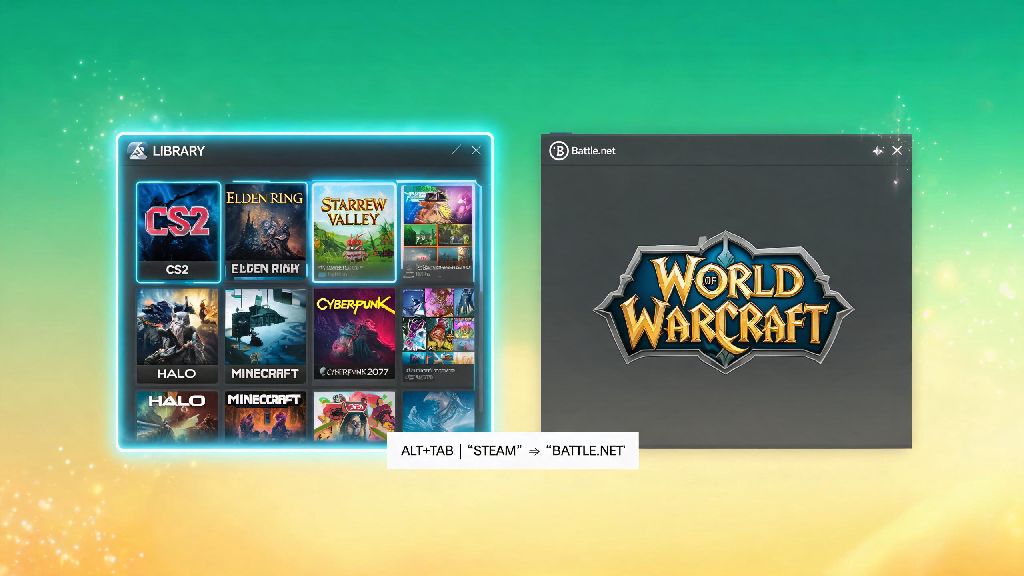
If you’re someone who keeps all your PC games organized in one Steam library, you’ve probably wondered at some point: can you get World of Warcraft on Steam? It makes total sense to want all your launchers, save data, and friend lists in one place, instead of switching between Battle.net and Steam every time you want to swap between WoW and a different game. I’ve tested every possible way to get WoW working with Steam over the past three years, so I’m breaking down exactly what works, what doesn’t, and what you need to know before you try anything.
Can You Get World of Warcraft on Steam Natively?
The short answer right now is no, you can’t download and install World of Warcraft directly through the Steam store, unlike many other popular MMOs. Blizzard has rolled out a small selection of its biggest titles to Steam in recent years, but WoW remains exclusive to the Battle.net launcher for official downloads. That doesn’t mean Blizzard will never add WoW to Steam, of course—community demand is really high, and the company has said it’s open to adding more titles down the line. For now, though, you won’t find it when you search the Steam store, even if you filter for MMOs or Blizzard games.
It’s important to note that any listings you see for WoW on third-party key sites claiming to work for Steam are almost always scams. You’ll end up wasting money on a code that doesn’t work, or worse, downloading malware that compromises your Steam or Battle.net account. Always buy WoW game time and expansions directly through Battle.net to avoid getting ripped off.
How to Add World of Warcraft to Your Steam Library Manually
Even if you can’t get World of Warcraft on Steam natively, you can add it as a non-Steam game in less than five minutes. This lets you launch WoW directly from your Steam library, use the Steam overlay while you play, and even track your playtime if you want. The process is super simple, and I’ve done this for all my Battle.net games with zero issues so far.
Once you’ve added it, you can customize the entry with custom art, rename it to specify if it’s retail or Classic, and even add it to your favorites for quick access. The only thing you can’t do is buy game time or expansions through Steam—you’ll still need to handle all account management through Battle.net, just like normal. I’ve found this method works even for beta versions of WoW, so you can add test builds to your library too if you’re part of the beta program.
Benefits of Adding WoW to Your Steam Library
A lot of players wonder if it’s even worth the trouble to add WoW to Steam, but there are a ton of small perks that make it well worth the two minutes of work. First off, you get all the benefits of the Steam overlay while you play. That means you can message your Steam friends, check achievement progress for other games, or even stream directly to Steam Broadcast without tabbing out of WoW. It’s a huge quality of life upgrade if most of your gaming friends use Steam instead of Battle.net.
You also get to keep all your games in one organized place, so you don’t have to scroll through your desktop or start menu looking for the Battle.net launcher every time you want to play. I used to have 4 different game launchers pinned to my taskbar, and condensing everything into Steam cut down the time it took me to get into a game by almost a minute every time. You can also use custom Steam input settings if you play WoW with a controller, which works way better than the default controller support built into Battle.net.
If you use a Steam Deck to play PC games on the go, adding WoW to your Steam library is non-negotiable. It’s way easier to launch WoW directly from the Steam Deck’s home screen than it is to navigate to Battle.net through desktop mode every time. I’ve played hours of WoW Classic on my Steam Deck using this method, and it runs perfectly with no extra tweaks needed as long as you have a stable internet connection.
Common Issues to Watch Out For
Adding WoW to Steam is usually seamless, but there are a few small issues you might run into if you’re not paying attention. The most common one is that the game won’t launch through Steam if you move your WoW installation folder to a different drive. If you rearrange your game storage, just go back to the Steam entry, right click it, select properties, and update the file path to the new location of the WoW executable. That fixes the problem 99% of the time.
You also might run into issues with the Steam overlay not showing up if you have multiple versions of WoW added to your library. Just make sure each version (retail, Classic, etc.) has its own separate entry in your Steam library, and that you’ve enabled the overlay for each one in the game properties menu. Never download third-party tools that claim to “integrate” WoW with Steam more deeply—most of these violate WoW’s terms of service, and you could end up with a temporary or permanent account ban if you use them.
The last thing to keep in mind is that you won’t earn Steam achievements for playing WoW, even if you have it added to your library. All achievement tracking still happens through Battle.net, so don’t expect to unlock Steam badges for hitting max level or clearing a raid. That’s a small downside for most players, but it’s worth mentioning if you’re someone who cares about 100% completing your Steam achievement list.
At the end of the day, you can’t download World of Warcraft directly through the Steam store right now, but adding it manually as a non-Steam game is so easy that most players won’t even notice the difference. It gives you almost all the perks of having a native Steam version, without any of the risk of downloading sketchy files or getting scammed by fake key listings. If you’ve been asking can you get World of Warcraft on Steam, this workaround is the closest you’ll get for the time being, and it’s well worth the two minutes it takes to set up. Give it a try the next time you log into WoW—you’ll wonder how you ever played without it.