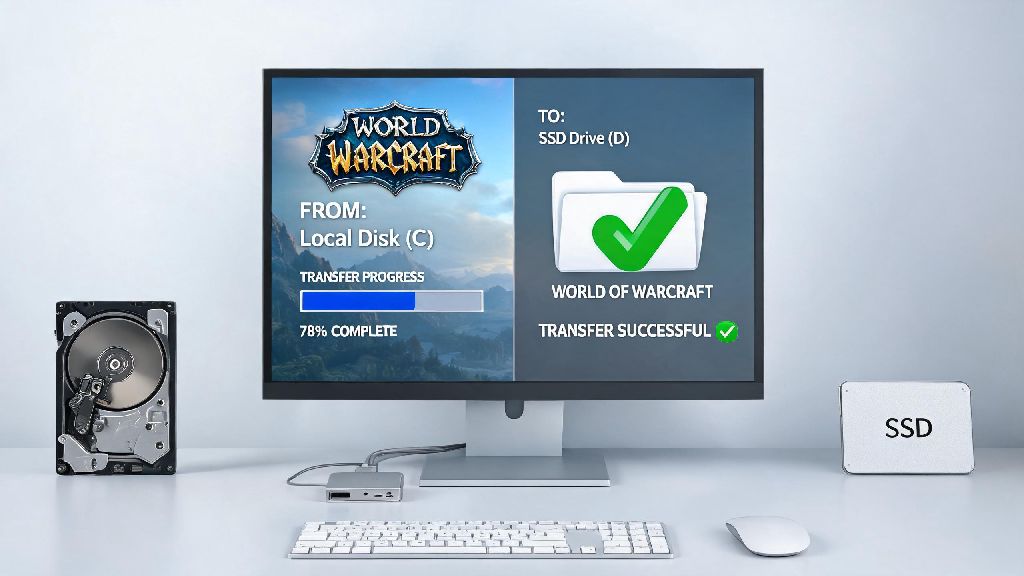
If you’ve stared at your C drive’s red storage bar while waiting for WoW’s Dragon Isles loading screen to crawl to life, you’ve probably asked: can i move world of warcraft to another drive? The short answer is yes, and you don’t have to redownload 100+ GB of game files to do it. I’ve moved my own WoW install three times over the years, between a dying HDD, a new NVMe SSD, and a portable drive for LAN parties, and I’ve figured out the fastest, lowest-risk ways to do it without breaking your addons, settings, or saved game data. Moving WoW isn’t just for fixing low storage issues, either—putting the game on an SSD can cut load times by up to 70% in busy zones like Orgrimmar or Stormwind, and eliminate texture pop-in that ruins open world exploration. I once had to move my install mid-patch right before a mythic raid night when my C drive ran out of space, and the manual transfer method saved me from missing the run entirely.
Can You Move World of Warcraft to Another Drive Without Reinstalling?
A lot of players assume moving a game as big as WoW requires a full reinstall, but that’s not the case at all. All of WoW’s core game files, addon configurations, UI settings, and even character-specific macros are stored in the same root game folder, so moving the whole folder to a new drive works exactly as intended if you follow the right steps. You won’t lose any of your custom settings, addon configurations, or character-specific UI layouts if you complete the transfer correctly, no extra backup work required for most players. The only rare exception is for players using very old, unsupported addons that store config files in your system’s Documents folder, but almost all modern WoW addons keep all their data inside the game’s main folder structure. You also don’t need any third-party software to complete the move, either the built-in Battle.net tool or basic file explorer functions work perfectly.
Two Safe Methods to Move World of Warcraft to a New Drive
Before you start moving any files, take 2 minutes to run through these quick pre-checks to avoid corrupted files or failed transfers:
The first method, and best for most casual users, is the built-in Battle.net move tool. Open the Battle.net launcher, navigate to the WoW tab, click the settings cog icon next to the Play button, select “Game Installation” from the dropdown menu, find the World of Warcraft install on the list, click “Move Folder”, and select the folder on your target drive where you want to store the game. The launcher will handle the rest of the transfer automatically, and will verify the files once the move is complete to make sure nothing was corrupted. This process usually takes 10-30 minutes depending on the size of your install and the speed of your drives.
If the Battle.net move tool glitches, or you want a faster transfer for very large installs, you can use the manual move method instead. Open your file explorer, find your current WoW install folder (usually located in C:\Program Files (x86)\World of Warcraft by default), right click the folder and select “Cut”, navigate to your target drive, right click and select “Paste”. Once the transfer is complete, open the Battle.net launcher, it will say it can’t find your WoW install, click the “Locate Game” button, and select the new WoW folder on your target drive. Never delete your old WoW folder until you’ve confirmed the new install launches and runs correctly to avoid losing data if something goes wrong during the transfer.
Common Issues You Might Face When Moving WoW (And How to Fix Them)
Most of the time, moving WoW goes off without a hitch, but there are a few common small issues that pop up for some players. The most frequent issue is the launcher saying your game files are corrupted after the move. This is almost always caused by a tiny file getting mismatched during transfer, and it’s super easy to fix: just click the settings cog next to the Play button, select “Scan and Repair”, and let the launcher run a 5-10 minute check of your files. It will automatically replace any corrupted or missing files, and you’ll be good to go.
Another common issue is all your addons and settings disappearing after the move. This happens when you only move part of the game folder instead of the whole thing, or you select the wrong folder when locating the game in the launcher. All addon data is stored in the WTF and Interface folders inside your game version folder (either retail or classic), so make sure those folders are present in the new install location. If they are missing, just copy them over from your old install folder and restart the game, and all your settings will be back.
If you notice the game runs slower after moving it, first check what type of drive you moved it to. If you moved it from an SSD to an HDD, slower load times are expected, but if you moved it to an SSD, make sure the drive is connected to the right port on your motherboard. NVMe SSDs need to be in a PCIe 4.0 slot to hit maximum speed, and SATA SSDs need to be connected to a SATA 3 port. If you’re using a portable drive, make sure it’s plugged into a USB 3.2 or faster port, as USB 2.0 ports are way too slow to run WoW smoothly.
Should You Move WoW to an SSD or HDD?
When you’re picking a new drive for WoW, the choice between SSD and HDD comes down to how often you play and what your budget is. SSDs are significantly faster than HDDs, and they make a huge difference to your WoW experience. Load times for zones, dungeons, and raids are cut by 60-70%, texture pop-in is almost completely eliminated, and patch installs take a fraction of the time they do on an HDD. If you play WoW more than 10 hours a week, moving it to an SSD is absolutely worth the small investment for the quality of life improvement alone. The only downside to SSDs is that they are more expensive per GB than HDDs, so if you have a small SSD, you might have to prioritize WoW over other less frequently played games.
HDDs are a good choice if you’re on a tight budget, or you only play WoW casually once or twice a week. You’ll have longer load times and more texture pop-in, but the game will run perfectly fine otherwise, and you’ll get way more storage space for your money. If you play on multiple devices, a portable SSD is a great middle ground, as it’s fast enough to run WoW smoothly, and you can plug it into any computer to play without having to move the install every time. Just make sure you get a portable SSD with at least 150GB of space to accommodate the current install size and future patches.
At the end of the day, if you’ve been asking can i move world of warcraft to another drive, you now have all the info you need to do it safely in less than 30 minutes. There’s no reason to put up with low storage warnings or glacial load times when the fix is so simple. I always recommend testing the game for 10-15 minutes after moving it, just to make sure all your settings are intact and there are no corrupted file issues. If you run into any snags that aren’t covered here, the Blizzard support forums have tons of fixes for edge cases, but 99% of the time, either the built-in move tool or manual transfer will work perfectly. You don’t need to be a tech expert to make the change, and the quality of life boost from faster load times or more available storage makes it well worth the small effort.